
Setting Up Your FTP Account
What is FTP?
FTP means File Transfer Protocol or a program
to upload or download files to and from the internet.
WS_FTP LE is very simple to use and it is reliable as well. The images you will see below are screen captures of my version of WS_FTP LE, yours may differ some but the concept is the same.
WS_FTP LE is very simple to use and it is reliable as well. The images you will see below are screen captures of my version of WS_FTP LE, yours may differ some but the concept is the same.
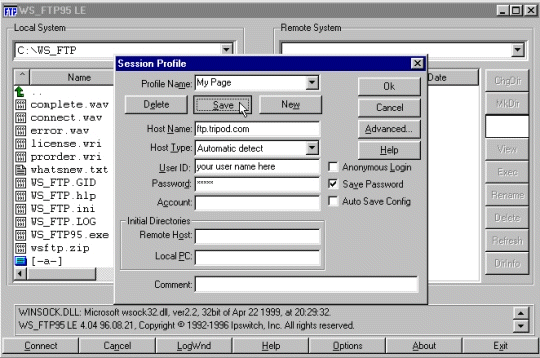
- First create a profile to log onto your web site host.
- Click on the "New" button to start your profile.
- Enter a Profile Name ("My Page" will do, or anything else for that matter).
- Enter your web page's FTP Host Name (eg: ftp.tripod.com or ftp.geocites.com)
- Enter a User ID (the user name for your web page host)
- Enter your Password for your web site host.
- Now check - Save Password
- Next click the "Save" or "Apply" button (this may vary). (Also this will make it available in the profile list for later).
- Finally, click the "OK" button and log onto your host.
What Are You Viewing ?
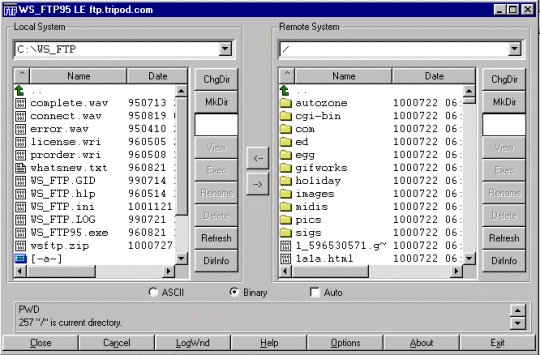
- Once your are logged onto your web site's FTP server, you will see two panels. The left panel (Local System) will display your computer's files and directories. The right panel (Remote System) will display your web site files and directories.
- In the center of these two panels you will see two buttons with "arrows" on them, one pointing right , the other pointing left, indicating the direction of the file transfer. These are your upload and download buttons for your files.
- You will also see the type of file transfer selected by default is "Binary". Leave this set to binary for uploading your web page images, sounds and web page files. You would change it to ASCII for uploading CGI and PERL files.
Uploading/Downloading Your Files
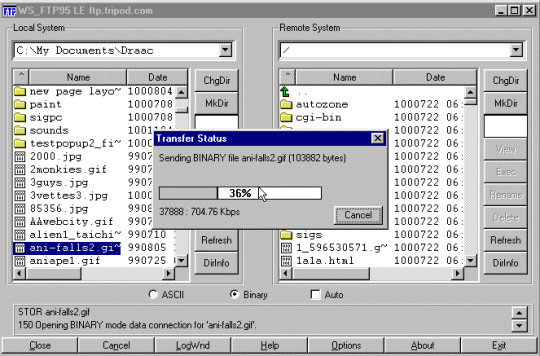
- To upload a file from your computer's files to your web site. Left click once with the mouse and highlight a file (or hold down control or shift and select multiple files) in the left panel. Once highlighted, click the "right arrow" button to copy the file(s) from your computer into your your web site's files. That is all there is to it.
- Reverse this process to download a file from your web sites files to your computer. Highlight the file on the right panel and then click the "left arrow" button to copy the file from the web site to your computer.
- You can open directories by double clicking on them in either panel. You might have a directory called "images" and would like to place another image into that directory. Just double click and open the directory, find the file to be placed in that directory, then upload or download the image file into that directory. This works the same for uploading or downloading into any of your directories in either panel.
- Helpful Tips:
- Double clicking on a selected file will upload or download it without using the "arrow" buttons in the center of the two panels.
- Use the Control key with the left mouse click to highlight multible random files in the same directory (You can jump around the directory and select different files before uploading or downloading them).
- Use the Shift key with the left mouse button to highlight multible files in a column in the same directory. Left click to highlight the first file, hold Shift and then left click on the last file in the column and all the files in between will be highlighted and ready to upload or download.
- If your FTP connection has timed out (you will hear an "uohh" sound when you attempt to upload or download) just hit the "Connect" button and re-establish your connection.
- When you upload or download a file, remember, it will "overwrite " any file with that same name in that same directory (without warning). So if you do not want to "overwrite" a file, rename your file to something else before uploading or downloading it.
For example: If I want to look at a "test" index.html page up on the internet, I will rename the file "indextest.html", so this way my original index.html will not be overwritten before I want it to be. - For more advanced users, to get to the Chmod option in WS_FTP LE, left click and highlight a file or directory in the right panel (the web site files), once highlighted, then right click on that file to see the option to Chmod.
- If you have the FTP program open and you have created a new file with your computer, then saved it in the directory that you have opened in the program. It will be necessary to "Refresh" the left panel (the computers files) to see that new file in that directory. Use the "Refresh" button to do this.
A Final Note
This lesson is for the beginner to show them how to log on for the first time and upload/download their files. You can do much more with the WS_FTP LE program than I have described here. Such as Chmod files, Delete files, Rename files, Move files, Make A Directory (MkDir), Change the Directory (CngDir) and more. Don't be afraid to try a few things, just be careful with that "Delete" button, you don't want to send a file to Never Never Land if you didn't really want to...:+) Take your time and learn about this tool, it is very powerful and can be your right hand when building web sites.